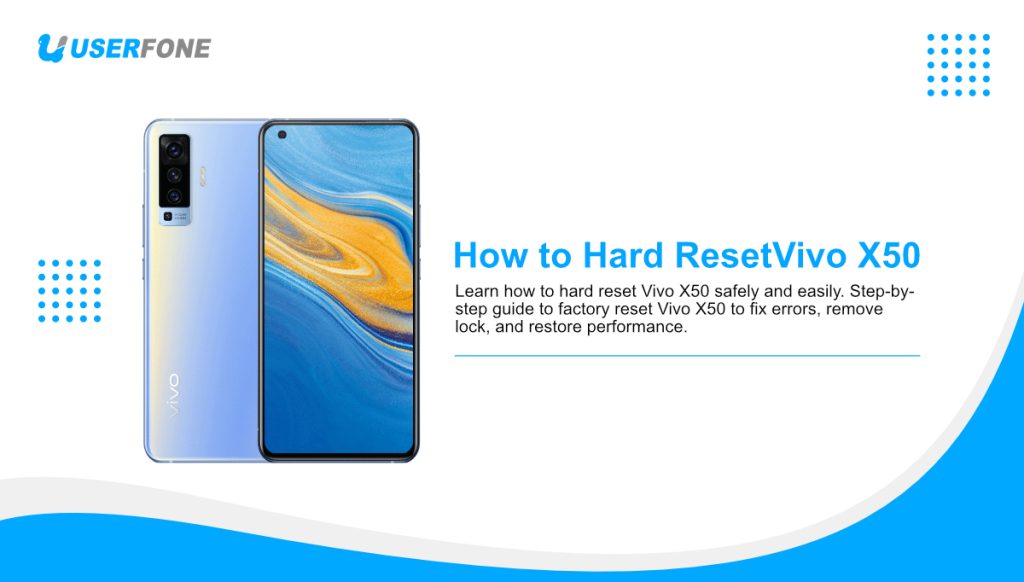
How to Hard Reset Vivo X50: Step-by-Step Complete Guide
A hard reset can solve many smartphone problems. If your Vivo X50 is slow, stuck, locked, or not responding, a factory reset may help. Many users search for how to hard reset Vivo X50 when they face software issues or want to sell their phone.
In this guide, you will learn safe and simple ways to hard reset Vivo X50. The steps are easy. The words are clear. The goal is to help you reset your phone without stress.
What Is a Hard Reset on Vivo X50?
A hard reset, also called a factory reset, wipes all data from your phone. It restores the device to its original system state.
A hard reset will:
- Remove all apps and files
- Delete Google and user accounts
- Fix system errors and crashes
- Improve performance if software is slow
However, it will not fix hardware damage.
When Should You Hard Reset Vivo X50?
You may need to hard reset your Vivo X50 if:
- The phone keeps freezing
- The screen is stuck on the logo
- You forgot your lock screen pattern
- Apps crash often
- You plan to sell or give away the phone
Therefore, a hard reset is useful in many situations.
Important Things to Do Before Hard Reset
Before resetting, prepare your device.
Backup Your Data
A hard reset deletes everything. So, back up:
- Photos and videos
- Contacts and messages
- WhatsApp and app data
You can use Google Drive or Vivo Cloud.
Charge Your Phone
Make sure battery is at least 50%. This prevents shutdown during reset.
Remove Google Account (If Possible)
This avoids Factory Reset Protection (FRP) issues later.
Method 1: Hard Reset Vivo X50 via Settings (Phone Is Working)
This method works if your Vivo X50 can still open the menu.
Steps:
- Open Settings
- Scroll and tap System Management
- Tap Reset
- Choose Erase all data (factory reset)
- Tap Reset Phone
- Enter your PIN or pattern
- Confirm to start reset
The phone will restart automatically.
Method 2: Hard Reset Vivo X50 Using Recovery Mode (Phone Locked or Frozen)
This is the most searched method for hard reset Vivo X50 without password.
Steps:
- Power off the Vivo X50
- Press and hold Power + Volume Up
- Release buttons when Vivo logo appears
- Select Recovery Mode
- Choose Wipe data/factory reset
- Confirm by selecting Wipe data
- Reboot the phone
Use volume keys to navigate. Use power key to select.
Method 3: Hard Reset Vivo X50 Using Find My Device
If your phone is lost or locked, this method helps.
Steps:
- Visit https://www.google.com/android/find
- Sign in with your Google account
- Select your Vivo X50
- Click Erase Device
- Confirm reset
This works only if the phone is connected to the internet.
What Happens After Hard Reset?
After reset, your Vivo X50 will:
- Restart like a new phone
- Ask for Google account login
- Require initial setup
Make sure you remember your Google account details.
Common Problems After Hard Reset and Solutions
Phone Asks for Old Google Account
This is FRP protection. Log in with the original Google account.
Phone Still Slow
Update system software after reset.
Apps Missing
Restore apps from Google Play backup.
Tips to Avoid Frequent Hard Resets
To keep your Vivo X50 healthy:
- Update apps regularly
- Avoid installing unknown apps
- Clear cache often
- Restart phone weekly
These steps reduce system errors.
Very Important Reminder
Now, read this part carefully. The following sentences all start with the same word.
Always backup your data before resetting.
Always charge your phone before starting.
Always use official reset methods only.
Always remember your Google account details.
Always reset only when truly needed.
This simple habit can save you from data loss.
FAQs About Hard Reset Vivo X50
Does hard reset remove viruses?
Yes, most software-based malware will be removed.
Will hard reset remove Vivo account?
Yes, if you log out before resetting.
How long does hard reset take?
Usually 5 to 10 minutes.
Final Thoughts
Learning how to hard reset Vivo X50 is very useful. It helps fix errors. It removes lock issues. It restores performance. The steps are simple and safe if followed correctly.
However, a hard reset should not be your first option. Try restarting or clearing cache first. Reset only when needed.
Call-To-Action
Did this guide help you reset your Vivo X50?
👉 Share this article with friends who need help
👉 Leave a comment if you face any issue
👉 Follow us for more Vivo tips and guides
Your feedback helps others solve problems faster.